


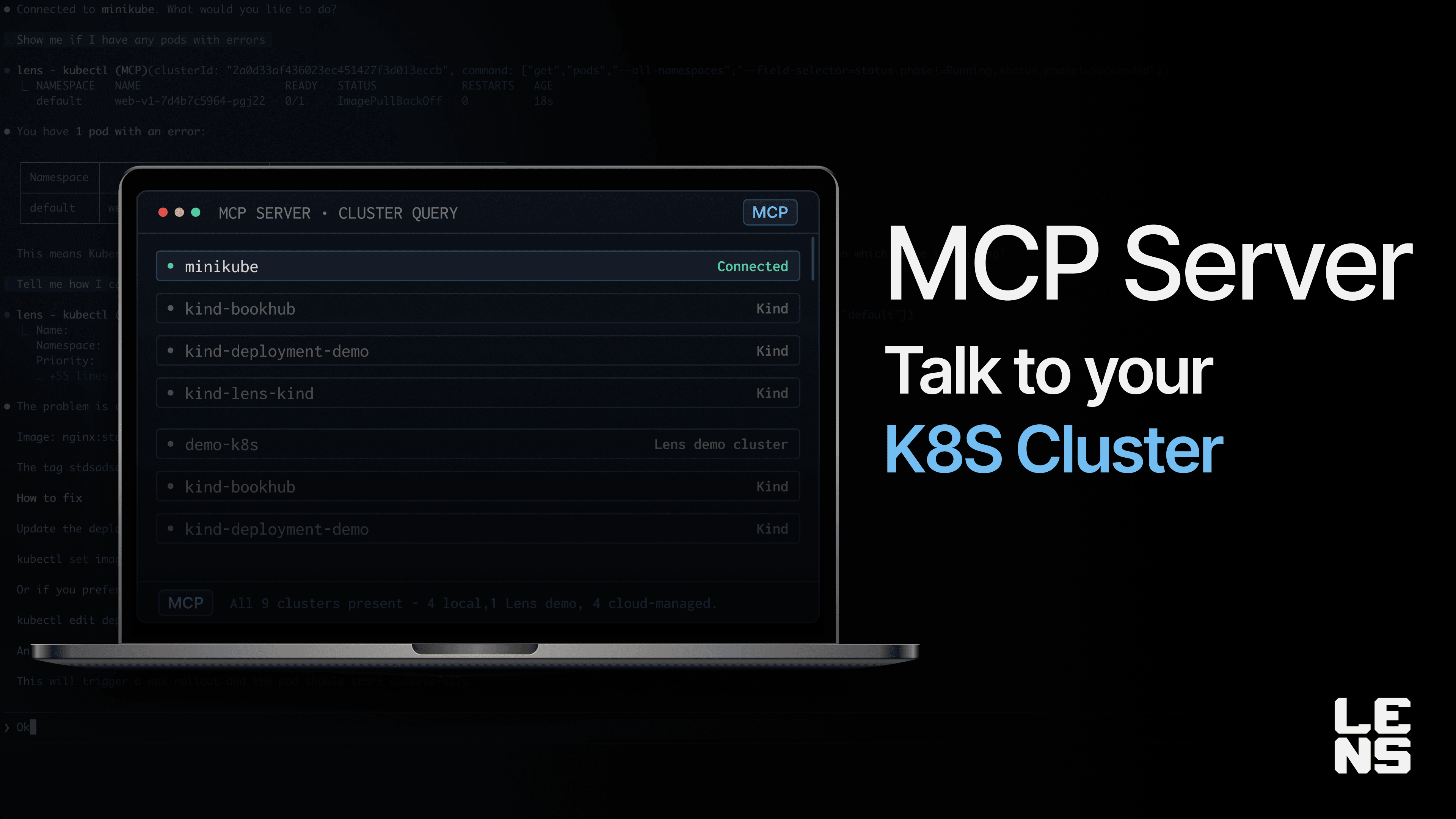
Manage All Your K8s Clusters from Any AI Assistant with the Lens MCP Server
TL;DR
- Lens Kubernetes (K8s) IDE now offers its own MCP server that makes it easy for AI assistants to communicate with the Kubernetes cluster you have added in Lens K8s
- Lens MCP Server unlocks access to your Kubernetes clusters, right now in a read-only mode, so you can get information about your resources from your AI workflow and troubleshoot them with ease
- Based on the AWS EKS and Azure Kubernetes Service (AKS) integrations, the Lens’ MCP server can connect directly to your EKS and AKS clusters, without you needing to have them available in your local kubeconfig
- The Lens MCP Server will also connect to the Kubernetes clusters you have in your Lens Teamwork Spaces
What is an MCP Server and why does it matter for Kubernetes?
Model Context Protocol (MCP) is an open source standard introduced by Anthropic that was donated to the Agentic AI Foundation (AAIF), which can help you connect your AI assistants to different applications or systems.
In Kubernetes, an MCP Server can help you manage your K8s clusters, by using natural language, so that you can easily troubleshoot issues, understand their root cause, and fix problems before they cause downtime.
In addition to this, if you are just starting out with Kubernetes, an MCP Server can easily explain what resources you have in your clusters, how they work together, and you don’t need to memorize any complicated kubectl commands, as everything is explained in plain English (or any other language of your choice).
What does Lens MCP Server do?
Lens MCP Server is a bridge between your AI assistants and Lens Kubernetes IDE, enabling you to easily manage your Kubernetes clusters from them. It gives you the ability to:
- List Kubernetes clusters: This shows all your connected Kubernetes clusters in the Lens Kubernetes IDE. Based on the AWS EKS and Azure Kubernetes Service Integrations, you don’t need to have all of these clusters inside your kubeconfig. Also, if you are using Lens Teamwork, the MCP Server can connect to those clusters as well.
- Connect to your K8s clusters: You can connect to multiple clusters at the same time, giving you the option to investigate in parallel.
- Disconnect from a K8s cluster: When working at scale, you might have clusters that you are currently not interested in doing different investigations on. With this option, you can exclude them from consideration when troubleshooting.
- Run read-only kubectl commands (get, describe, logs, top): Lens MCP server gives you the ability to understand what is happening with your cluster at scale, but right now, it doesn’t give you the option to perform mutations
- Get information from Prometheus: The Lens MCP server helps you understand your Prometheus metrics–you can list metrics, view alerts, get targets, and even execute different queries
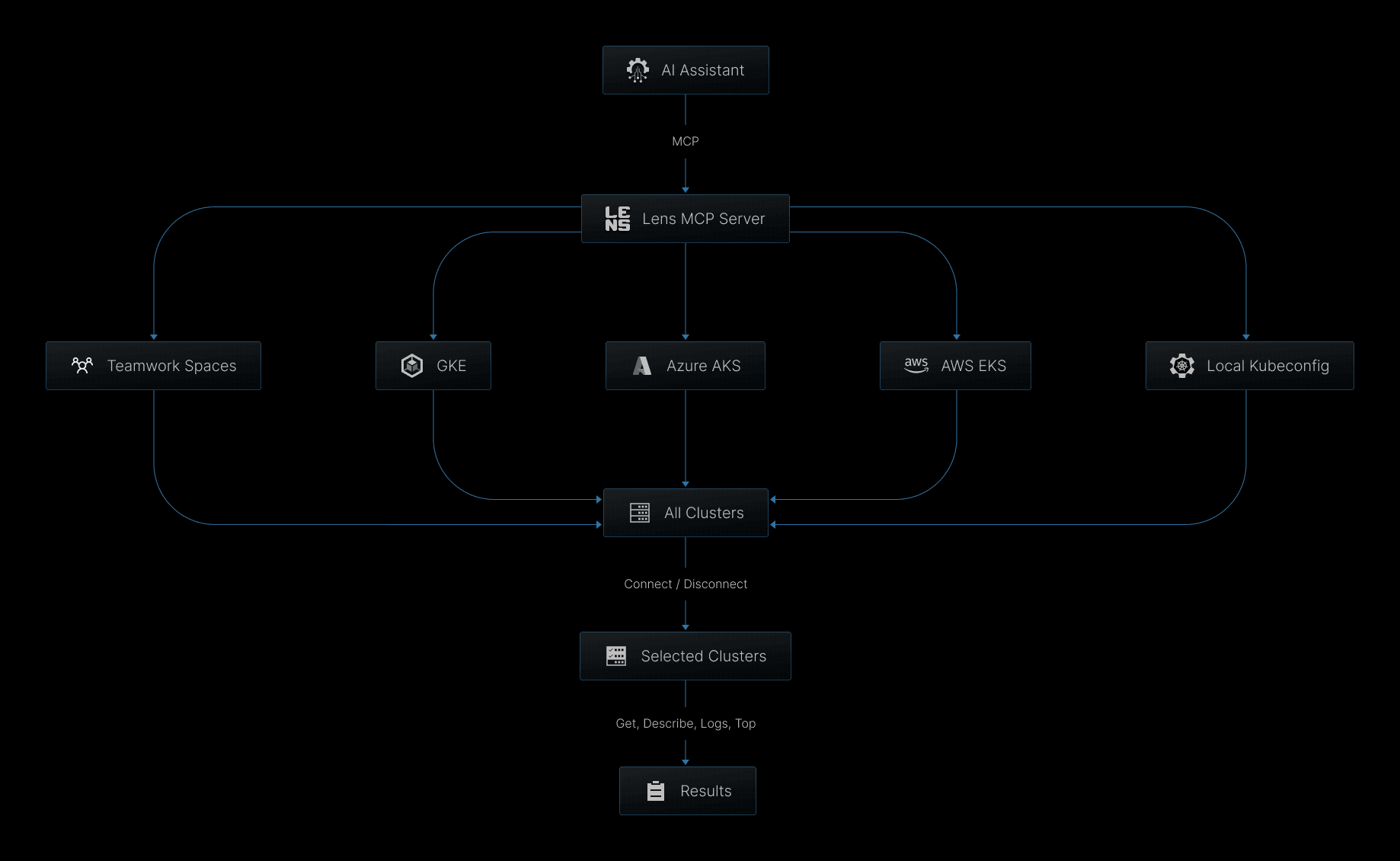
As mentioned in this article, most Kubernetes MCP servers work only with your local kubeconfig. The Lens MCP Server, with native integrations for AWS EKS, AKS, and Google Kubernetes Engine (to be released soon), provides the same access as the Lens Kubernetes IDE application. This means that if you configure an integration with AWS EKS, for example, that gives you access to 50 Kubernetes clusters, the MCP server can interact with all of them.
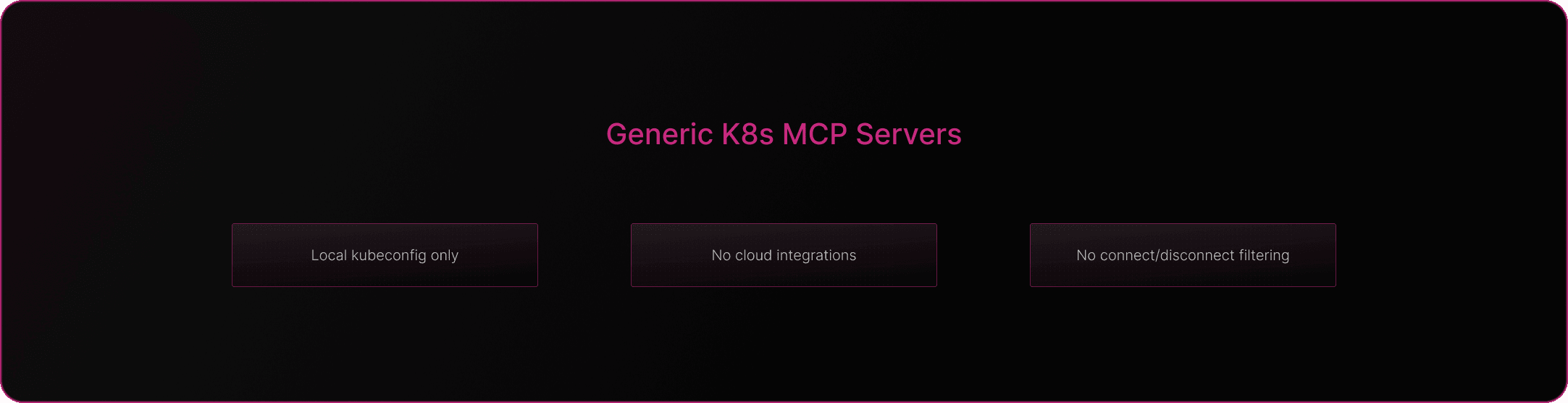
The option to connect to and disconnect from different clusters unlocks a new filtering capability when troubleshooting. With other MCP servers, you need to either specify which clusters you want to investigate, select all, or group them by type (EKS, AKS, minikube, kind, etc.). With the connection capability, you actually have another way to group them: you can be connected to 20 clusters out of 50 and tell the LLM to only look at the connected ones.

Check out how to configure the AWS EKS integration:
Check out how to configure the AKS integration:
How to configure the Lens MCP Server?
The first thing you will need to do is head over to Settings → App, and then ensure the MCP Server is toggled on:
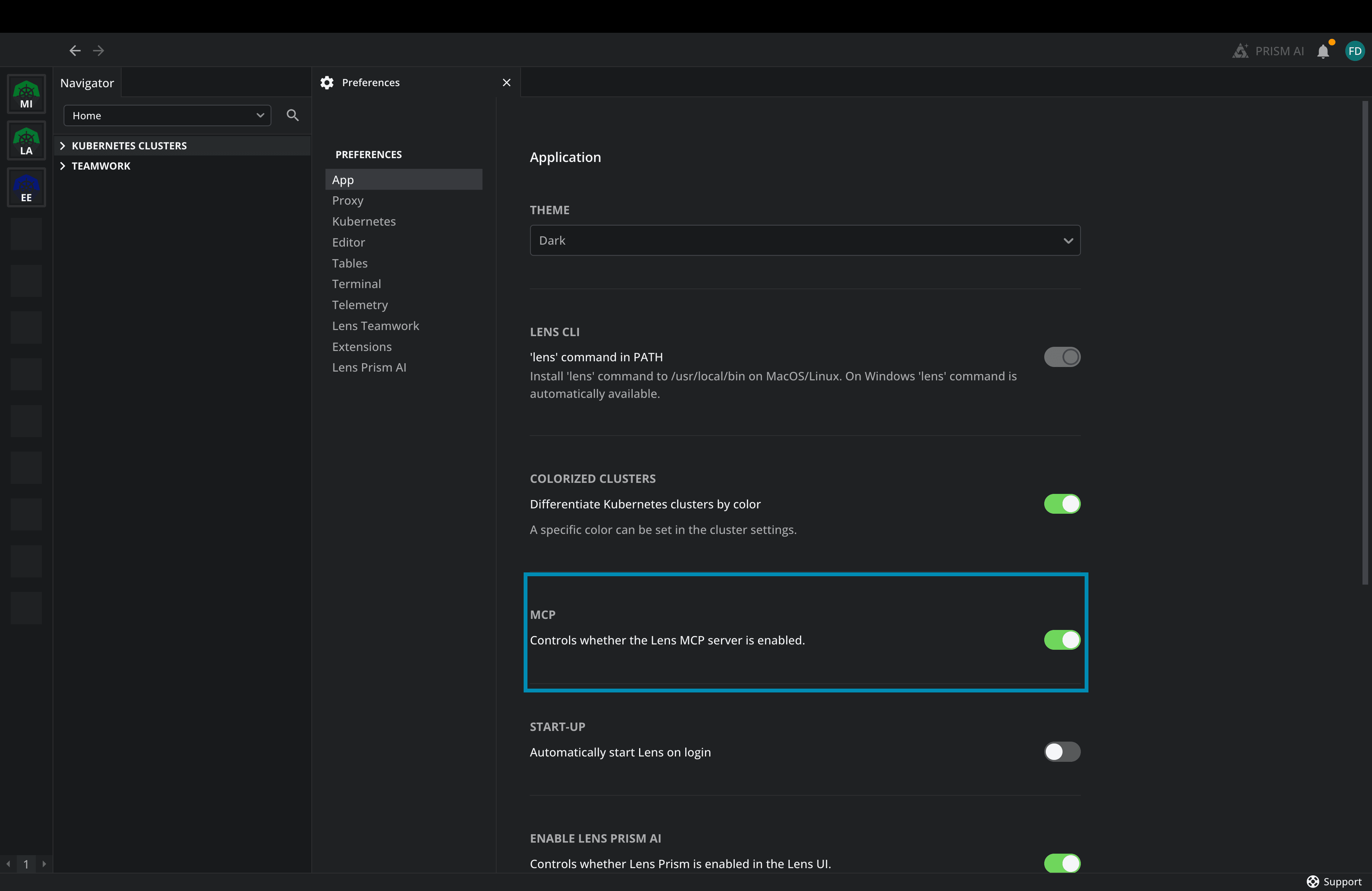
You should also ensure that the Lens CLI is in the PATH, but as you can see in the screenshot above, you can easily do so by toggling the “Lens CLI” option.
Note: This is required only on MacOS and Linux. On Windows, the Lens CLI is automatically in the PATH.
After you are done with these settings, you will now have to enable your AI assistant to use the MCP server. For this example, I will use Claude Code, but you can use any AI assistants you’d like such as Claude Desktop, ChatGPT, Cursor, Windsurf, or anything else that supports MCP.
For Claude Code, the easiest way to enable the server is to add the configuration in the ~/.claude/settings.json file like this:
{
 "mcpServers": {
   "lens": {
     "command": "lens",
     "args": [
       "mcp-server"
     ]
   }
 }
}
Now you are ready to use the Lens MCP server. For this I will go to my terminal and start Claude Code using the claude command.
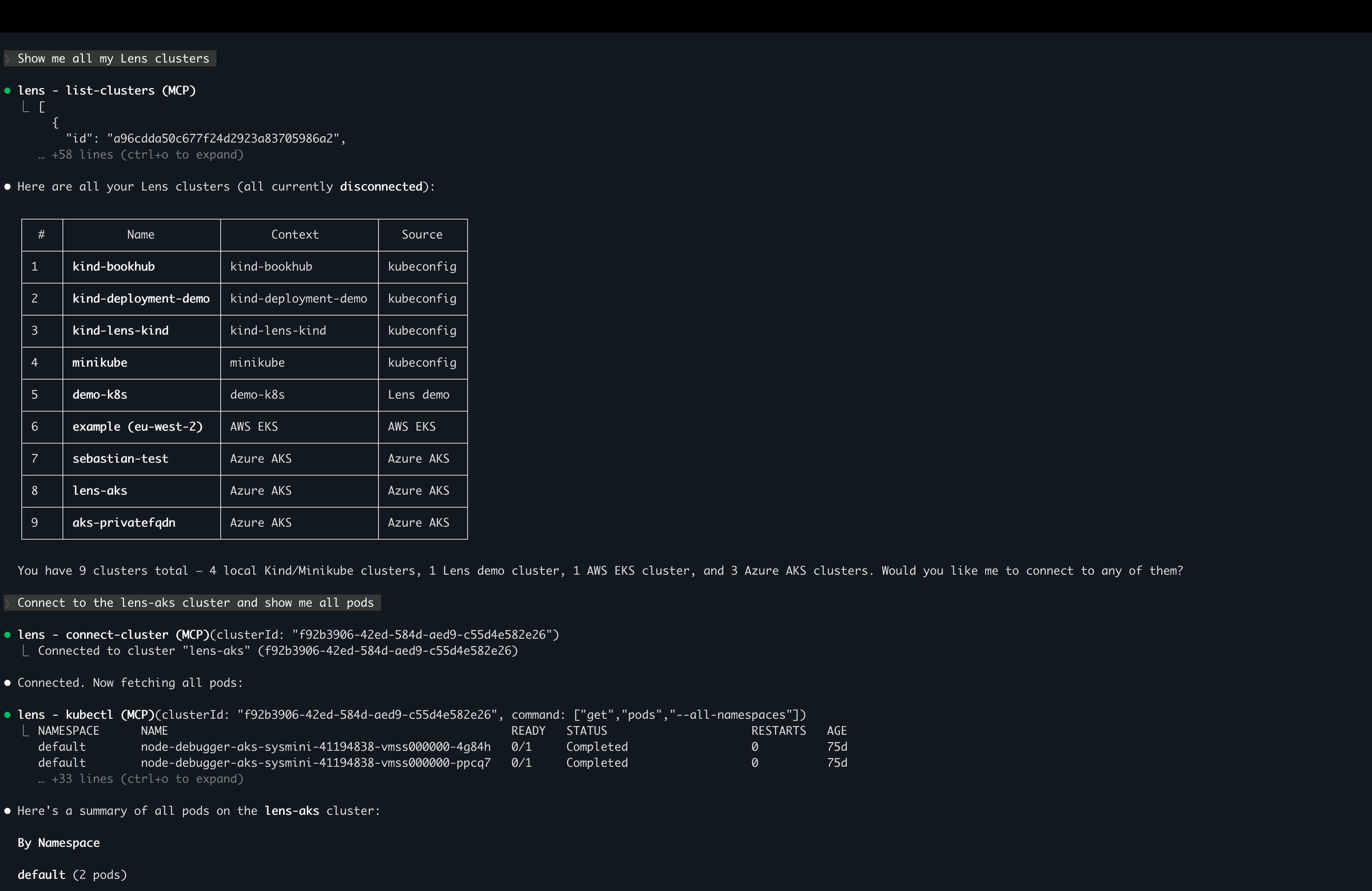
I’ve asked Claude to list all the clusters I have in Lens, then connect to one of my Azure clusters and show me all its pods (you can press Ctrl+O to expand the list and see everything).
Then I switched to my minikube cluster, where I already knew there were issues with my pods. I’ve asked Claude to list all the pods that have problems, investigate the issue, and then provide the solution for how to fix it.
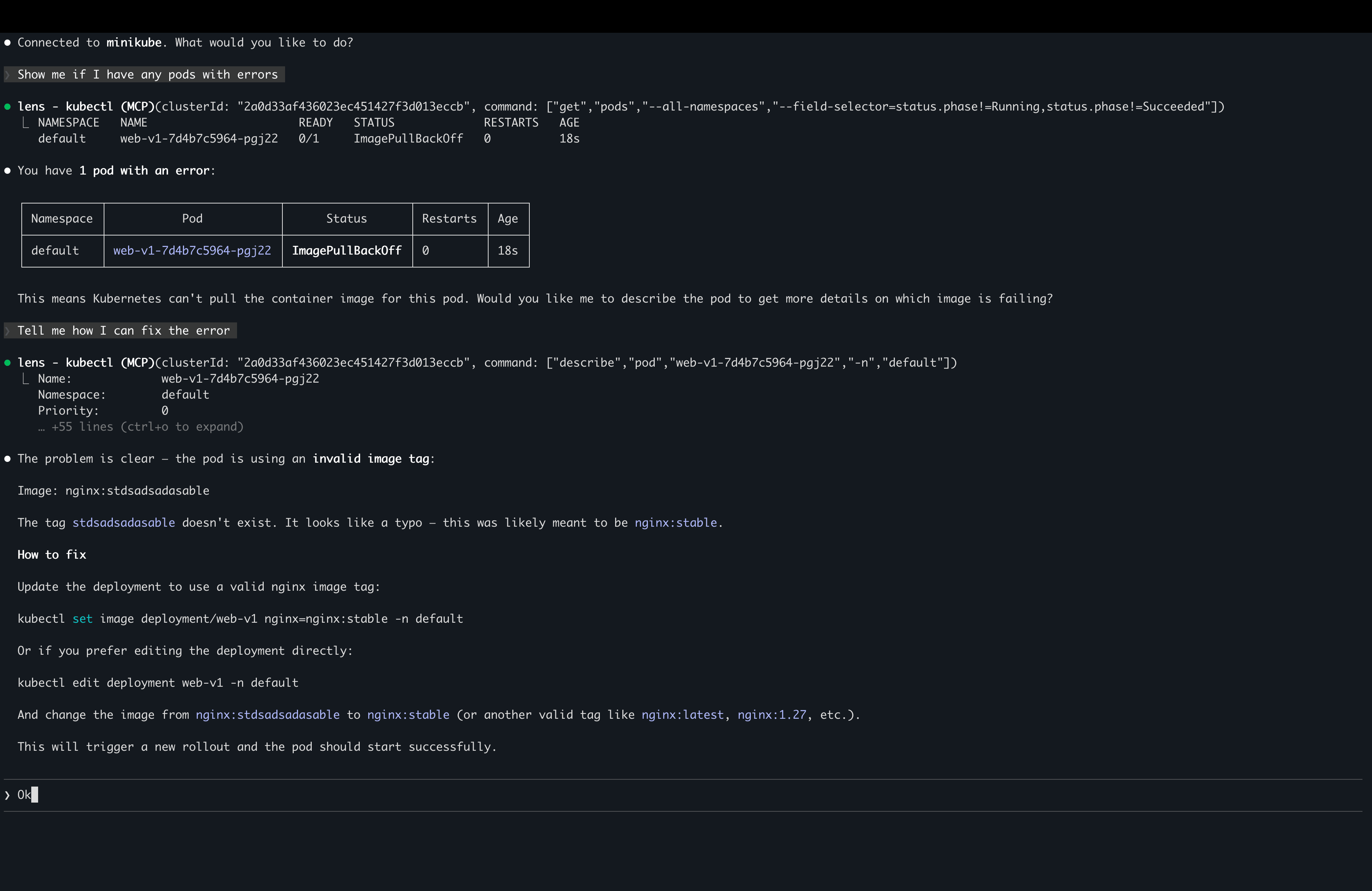
As mentioned before, the Lens MCP server is in read-only mode right now, but you can easily copy this solution to your terminal, Lens K8s terminal, or even fix the issue from the Lens K8s built-in editor directly.
Check out the video to see the Lens MCP server in action:
Key points
Lens Kubernetes IDE now offers its own MCP Server to make Kubernetes management even easier, from the tools your developers already have.
Using the native AWS and Azure integrations, as well as Lens Teamwork, unlocks an even easier way for your MCP server to communicate with all your Kubernetes clusters, reducing the overhead of setting everything up.
If you want to learn more about how Lens Kubernetes IDE can help you with your Kubernetes workflows, book a demo with one of our engineers.
Troubleshooting has never been easier!