
TL;DR
- OpenClaw is a personal AI assistant with a web Control UI. Put that UI on an open port, and anyone who finds it can talk to your assistant.
- In a Lens Agents sandbox, the Control UI has no open port. It is a private port behind your Lens Agents login, and OpenClaw knows who you are from the platform.
- The model comes through managed inference with OpenRouter, so the sandbox holds no API key. You decide what else on the network it can reach.
OpenClaw is useful because it acts for you: it remembers, it runs tools, it does things. That's also why hundreds of thousands of exposed instances are a problem. An assistant with your context and your keys, on an open port, is an assistant for anyone who finds it.
This post runs OpenClaw for one person, in a Lens Agents sandbox, with none of that exposed.
How the pieces fit
OpenClaw runs a gateway that serves the Control UI and talks to the model. In the sandbox, the gateway listens only on 127.0.0.1. The sandbox publishes that port as private: Lens Agents gives it a URL, asks you to log in, checks your project access, and then forwards the request with your identity in a header. OpenClaw trusts that header, so it knows who you are without a second password.
The model is managed inference. The sandbox gets an OpenRouter endpoint and a placeholder key. The platform adds the real key at the boundary and meters the spend. OpenRouter is the easiest backend to set up: one API key, no cloud account, and hundreds of models behind it.
What you need
- The latest Lens Agents release, with OpenRouter enabled for your org. An org admin adds the OpenRouter API key on the org's Inference keys page. If you don't have a platform yet, follow the getting started guide.
nexusctl, installed from your Lens Agents platform and logged in withnexusctl auth login.- The email address you log in to Lens Agents with. OpenClaw makes that identity the admin of the gateway.
Step 1: Define the sandbox
name: OpenClaw
image: ghcr.io/openclaw/openclaw:2026.10.8
cpu: "2"
memory: 4Gi

volumes:
  - mountPath: /data
    size: 10Gi

exposedPorts:
  - name: web
    port: 18789
    auth: private

env:
  LENS_SANDBOX_WRITABLE_DIR: /data
  OPENCLAW_CONFIG_PATH: /data/openclaw.json
  OPENCLAW_STATE_DIR: /data/state
  OPENCLAW_WORKSPACE_DIR: /data/workspace
  OPENCLAW_NO_AUTO_UPDATE: "1"
  OPENCLAW_MODEL: anthropic/claude-opus-5.5
  OPENCLAW_ADMIN: ${OPENCLAW_ADMIN}

files:
  - path: /home/node/start-openclaw.sh
    content: |
      [ -n "$NEXUS_INGRESS_IDENTITY_HEADER_WEB" ] || { echo "publish the web port as private" >&2; exit 1; }
      origins="\"$(printf '%s' "$NEXUS_INGRESS_ORIGINS_WEB" | sed 's/,/","/g')\""

      openclaw config unset gateway.auth.identityScopes >/dev/null 2>&1
      openclaw config set gateway "{
        \"mode\": \"local\", \"bind\": \"loopback\", \"port\": 18789,
        \"trustedProxies\": [\"127.0.0.1\"],
        \"auth\": {
          \"mode\": \"trusted-proxy\",
          \"trustedProxy\": {
            \"userHeader\": \"$NEXUS_INGRESS_IDENTITY_HEADER_WEB\", \"allowLoopback\": true,
            \"deviceAutoApprove\": {
              \"enabled\": true,
              \"scopes\": [\"operator.read\", \"operator.write\", \"operator.approvals\", \"operator.questions\"]
            }
          },
          \"identityScopes\": { \"$OPENCLAW_ADMIN\": [\"operator.admin\"] }
        },
        \"controlUi\": {
          \"allowedOrigins\": [$origins],
          \"dangerouslyAllowHostHeaderOriginFallback\": false,
          \"dangerouslyDisableDeviceAuth\": true
        }
      }" --strict-json --merge || exit 1

      openclaw config set update '{"checkOnStart": false, "auto": {"enabled": false}}' --strict-json --merge

      openclaw config set models.providers.nexus "{
        \"api\": \"anthropic-messages\",
        \"baseUrl\": \"$ANTHROPIC_BASE_URL\",
        \"apiKey\": \"nexus-managed\",
        \"models\": [{\"id\": \"$OPENCLAW_MODEL\", \"name\": \"$OPENCLAW_MODEL\"}]
      }" --strict-json
      openclaw config set agents.defaults.model "{\"primary\": \"nexus/$OPENCLAW_MODEL\"}" --strict-json --merge
      openclaw config set memory.search "{
        \"enabled\": true, \"provider\": \"openai\",
        \"model\": \"openai/text-embedding-3-small\", \"fallback\": \"none\",
        \"remote\": { \"baseUrl\": \"$OPENAI_BASE_URL\", \"apiKey\": \"$OPENAI_API_KEY\" }
      }" --strict-json --merge

      openclaw config set mcp.servers.nexus "{
        \"command\": \"/.lens/nexus-mcp\", \"enabled\": true,
        \"env\": {
          \"NEXUS_MCP_URL\": \"$NEXUS_MCP_URL\",
          \"HTTPS_PROXY\": \"$HTTPS_PROXY\",
          \"HTTP_PROXY\": \"$HTTP_PROXY\",
          \"SSL_CERT_FILE\": \"$SSL_CERT_FILE\"
        }
      }" --strict-json

      exec openclaw gateway

command: sh /home/node/start-openclaw.sh

policy:
  name: OpenClaw
  networkDefaultVerdict: deny
  managedInference:
    enabled: true
    provider: openrouter
  allowedDomains:
    - pattern: "*"
      verdict: allow
      transport: direct
      description: Read-only internet
      rules:
        - { method: GET }
        - { method: HEAD }
A few things to note:
- The image is pinned, and
OPENCLAW_NO_AUTO_UPDATEplus theupdatesetting keep it pinned. An assistant that upgrades itself is no longer the one you reviewed. - State lives on the
/datavolume: config, memory, and workspace. A restart picks up where the assistant left off.LENS_SANDBOX_WRITABLE_DIRgives the volume to the image's own user before the gateway starts. - The start script writes OpenClaw's settings on every boot with OpenClaw's own
config set, then starts the gateway. Settings you change in the Control UI stay, except the ones the script owns. - The gateway trusts only the platform. It binds to loopback and reads your identity from the header that the private port adds. The allowed origins are the URLs of this sandbox, so another site can't drive the Control UI from your browser.
- Only you administer it.
OPENCLAW_ADMINgets the admin scope: channels, devices, gateway settings. Anyone else in the project who opens the port can chat and answer approvals, but can't change the gateway. - You decide what the assistant can reach. The policy denies by default. OpenClaw talks to the model through managed inference, which the policy grants separately. The one rule in
allowedDomainsgives read-only internet:GETandHEADpass, so the assistant can read the web but can't post to it. That can also let OpenClaw read its model catalog and download skills from ClawHub. Remove the rule to block all of it, or add domains with the methods you trust. - Memory search uses OpenRouter too. OpenClaw indexes its memory with an embedding model, and the script points it at the same managed OpenRouter endpoint, through OpenRouter's OpenAI-compatible API.
OPENCLAW_MODELis any OpenRouter model id. Change it to try another model.
Step 2: Create the sandbox
OPENCLAW_ADMIN=you@example.com nexusctl sandbox create --project <org>/<project> -f sandbox.yamlcreate expands ${OPENCLAW_ADMIN} from your environment. The image is large, so the first start takes a few minutes.
Step 3: Open the Control UI
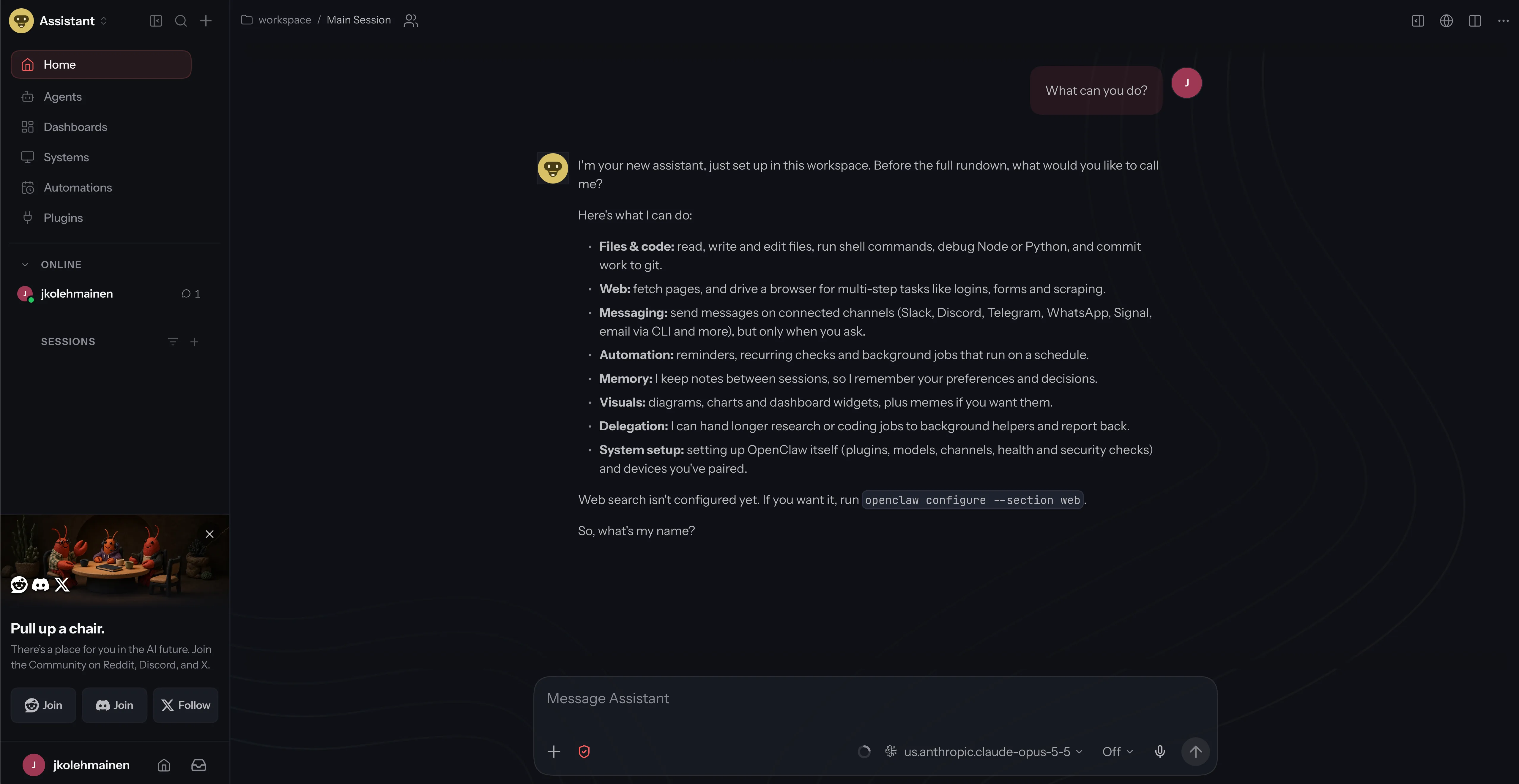
nexusctl sandbox describe <sandbox> --project <org>/<project>The Exposed Ports section shows the URL of the web port. Open it, log in to Lens Agents if asked, and the Control UI opens as you, with admin rights. Say hello.
Step 4: Give the assistant your tools
The start script connects OpenClaw to the Lens Agents MCP gateway. Through it, the assistant can use any MCP server that you add to your project, such as your issue tracker or your docs:
- Add the MCP server to your Lens Agents project as a connector, and connect your account to it there.
- Grant the connector in the sandbox policy, and choose which of its tools the assistant can use.
In sandbox.yaml, the grant goes under policy:
policy:
  # ... as in Step 1
  connectors:
    - connectorId: <connector-id>
      credentialId: <credential-id>   # only if the connector needs a login
      allowedTools: [search_issues, get_issue]
nexusctl connector describe <connector> --project <org>/<project> shows the connector's id, its credentials, and its tools. Only the tools in allowedTools reach the assistant. Apply the change with nexusctl sandbox update <sandbox> --project <org>/<project> -f sandbox.yaml, with OPENCLAW_ADMIN set as in Step 2.
Your login for the MCP server stays in Lens Agents. The sandbox sees the tools, never the token, and every tool call is recorded.
What the sandbox adds
OpenClaw gives you the assistant. The sandbox decides what it can reach:
- No open port. The Control UI is behind your Lens Agents login, and OpenClaw sees who is calling.
- No model key in the sandbox. The OpenRouter key stays with the platform. Spend limits apply to it, and the spend is attributed to the sandbox.
- Default-deny egress with per-domain, per-method rules. You choose what the assistant can reach beyond the model.
- Audit. Every request the sandbox proxy handles is recorded, with the policy decision.
Lens Agents also ships an OpenClaw template in the web UI, with Slack as a channel. This spec is the same setup as a file, for one person, that you can keep in Git.
For more on running agents with these controls, read how to run Hermes Agent securely.
Run your agents governed
Run OpenClaw and your other agents with identity, policy, and audit built in.
FAQ
Can someone reach the Control UI without logging in?
No. The port is private, so every request goes through the Lens Agents login and a project access check before it reaches the sandbox.
Can I use another inference backend instead of OpenRouter?
Yes, if your org has it. For most backends, change two things: provider in the policy, and the model in OPENCLAW_MODEL. OpenAI and Bedrock also need changes in the start script. The OpenClaw template in Lens Agents supports every backend, so use it as the reference.
How do I give the assistant a new tool or website?
The read-only rule already lets it read any website. To let it write to one, for example to POST to an API, add that domain to allowedDomains with the methods it needs. For MCP tools, see Step 4.
What happens to the assistant when the sandbox restarts?
The /data volume stays, so memory, workspace, and settings stay too. The script writes its own settings again, and the gateway starts.