
TL;DR
- VS Code Remote-SSH runs the editor UI on your laptop and the rest, including the terminal and most extensions, on the remote host.
- A Lens Agents sandbox speaks SSH through
nexusctl, so it can be that remote. No sshd in the image, no open port. - The result: the Claude Code extension works as usual, but it runs in a sandbox with default-deny egress, not on your laptop.
A coding agent in your editor is convenient. It also runs with everything your editor can reach: your files, your SSH keys, your cloud credentials, and an open network.
VS Code already knows how to put the work somewhere else. This post puts it in a Lens Agents sandbox.
How the pieces fit
With Remote-SSH, VS Code installs a small server on the remote host. The window on your laptop draws the UI. The terminal, the file system, language servers, and most extensions run in that server. The Claude Code extension is one of them, so the agent, its tools, and its commands all run on the remote side.
Remote-SSH uses plain OpenSSH, and a Lens Agents sandbox doesn't run an SSH server. Instead, nexusctl sandbox ssh-proxy acts as one on your machine, as an OpenSSH ProxyCommand. Each SSH session becomes one exec in the sandbox, authenticated with your Lens Agents login. Remote-SSH also needs a local port forward to its server, and the proxy supports that too.
What you need
- Lens Agents 0.34.0 or later. SSH access to sandboxes arrived in that release. If you don't have a platform yet, follow the getting started guide.
nexusctl, installed from your Lens Agents platform and logged in withnexusctl auth login.- The ADMIN role on the project where the sandbox lives. SSH access requires it.
- VS Code with the Remote - SSH extension.
- A fine-grained GitHub token with access to only the repositories the agent works on.
Step 1: Define the sandbox
The sandbox is a home directory on a persistent volume. The VS Code server and its extensions install into $HOME, so they survive a restart, and so do your repositories and the Claude Code login.
name: VS Code Box
image: ubuntu:24.04
command: sleep infinity
cpu: "4"
memory: 16Gi

user: ubuntu
workdir: /home/ubuntu/work

volumes:
  - mountPath: /home/ubuntu
    size: 30Gi

scripts:
  - when: pre-start
    description: install base packages
    user: root
    run: |
      apt-get update -qq
      DEBIAN_FRONTEND=noninteractive apt-get install -y -qq --no-install-recommends \
        curl git ca-certificates unzip xz-utils less >/dev/null
  - when: pre-start
    description: give the home volume to the agent user
    user: root
    run: chown ubuntu:ubuntu /home/ubuntu
  - when: pre-start
    description: set up the shell
    run: "[ -f ~/.bashrc ] || cp -rT /etc/skel ~"

policy:
  name: VS Code Box
  networkDefaultVerdict: deny
  allowedDomains:
    - { pattern: github.com, verdict: allow, transport: direct }
    - { pattern: "*.github.com", verdict: allow, transport: direct }
    - { pattern: "*.githubusercontent.com", verdict: allow, transport: direct }
    - { pattern: api.anthropic.com, verdict: allow, transport: direct }
    - { pattern: console.anthropic.com, verdict: allow, transport: direct }
    - { pattern: claude.ai, verdict: allow, transport: direct }
    - { pattern: platform.claude.com, verdict: allow, transport: direct }
    - { pattern: mcp-proxy.anthropic.com, verdict: allow, transport: direct }
    - { pattern: update.code.visualstudio.com, verdict: allow, transport: direct }
    - { pattern: "*.vscode-cdn.net", verdict: allow, transport: direct }
    - { pattern: marketplace.visualstudio.com, verdict: allow, transport: direct }
    - { pattern: "*.vsassets.io", verdict: allow, transport: direct }
    - pattern: "*"
      verdict: allow
      transport: direct
      description: Read-only internet
      rules:
        - { method: GET }
        - { method: HEAD }
  credentials:
    - { credentialName: gh-token, envVarKey: GH_TOKEN }

credentials:
  gh-token:
    value: ${GH_TOKEN}
    injections:
      - domain: api.github.com
        headerName: Authorization
        headerFormat: "Bearer {value}"
      - domain: github.com
        headerName: Authorization
        headerFormat: "Basic {base64:x-access-token:{value}}"
A few things to note:
command: sleep infinitykeeps the sandbox up. VS Code starts its own server the first time you connect.ubuntu:24.04is the official image. It has no curl or git, so the first script installs them as root. The agent user must exist in the image, andubuntudoes.- The VS Code domains let the server download itself and let you install extensions from the Marketplace. The Claude Code extension brings its own copy of Claude Code, so the image needs nothing else.
mcp-proxy.anthropic.comcarries the connectors of your Claude account, such as Slack or Google Drive. Without it, Claude Code works, but those connectors fail. With it, the agent in the sandbox can use those connectors with your access, so add it only if you want that.- The policy denies by default. For the rest of the internet, only
GETandHEADpass, which cuts off the obvious upload paths. You will see VS Code and extension telemetry denied in the sandbox log. That's expected, and nothing breaks. - The GitHub token never enters the sandbox.
$GH_TOKENinside the sandbox holds a placeholder. The real token is added to requests to GitHub at the platform boundary.
Step 2: Create the sandbox
read -rs GH_TOKEN && export GH_TOKEN
nexusctl sandbox create --project <org>/<project> -f sandbox.yaml
Paste the token at the prompt. read -s keeps it off the screen and out of your shell history, and create expands ${GH_TOKEN} from your environment.
Step 3: Make the sandbox an SSH host
Let nexusctl write the SSH config entry for every sandbox in the project:
nexusctl sandbox ssh-config --project <org>/<project> >> ~/.ssh/configThe entry matches *.<project>.<org>.nexus and routes through ssh-proxy:
Host *.<project>.<org>.nexus
  User sandbox
  ProxyCommand nexusctl sandbox ssh-proxy %n --project <org>/<project> --server <url>
  StrictHostKeyChecking no
  UserKnownHostsFile /dev/null
  LogLevel ERROR
Host key checking is off because the proxy is a local process with a throwaway key. Trust comes from your Lens Agents login and TLS to the platform, not from the SSH host key.
Use the full path to nexusctl. VS Code runs the ProxyCommand, and an app started from the Dock or the Start menu may not have your shell's PATH. If the connection fails with command not found: nexusctl, replace nexusctl in the entry with the output of command -v nexusctl.
Check that plain SSH works first:
ssh <sandbox>.<project>.<org>.nexus 'uname -a'Step 4: Connect VS Code
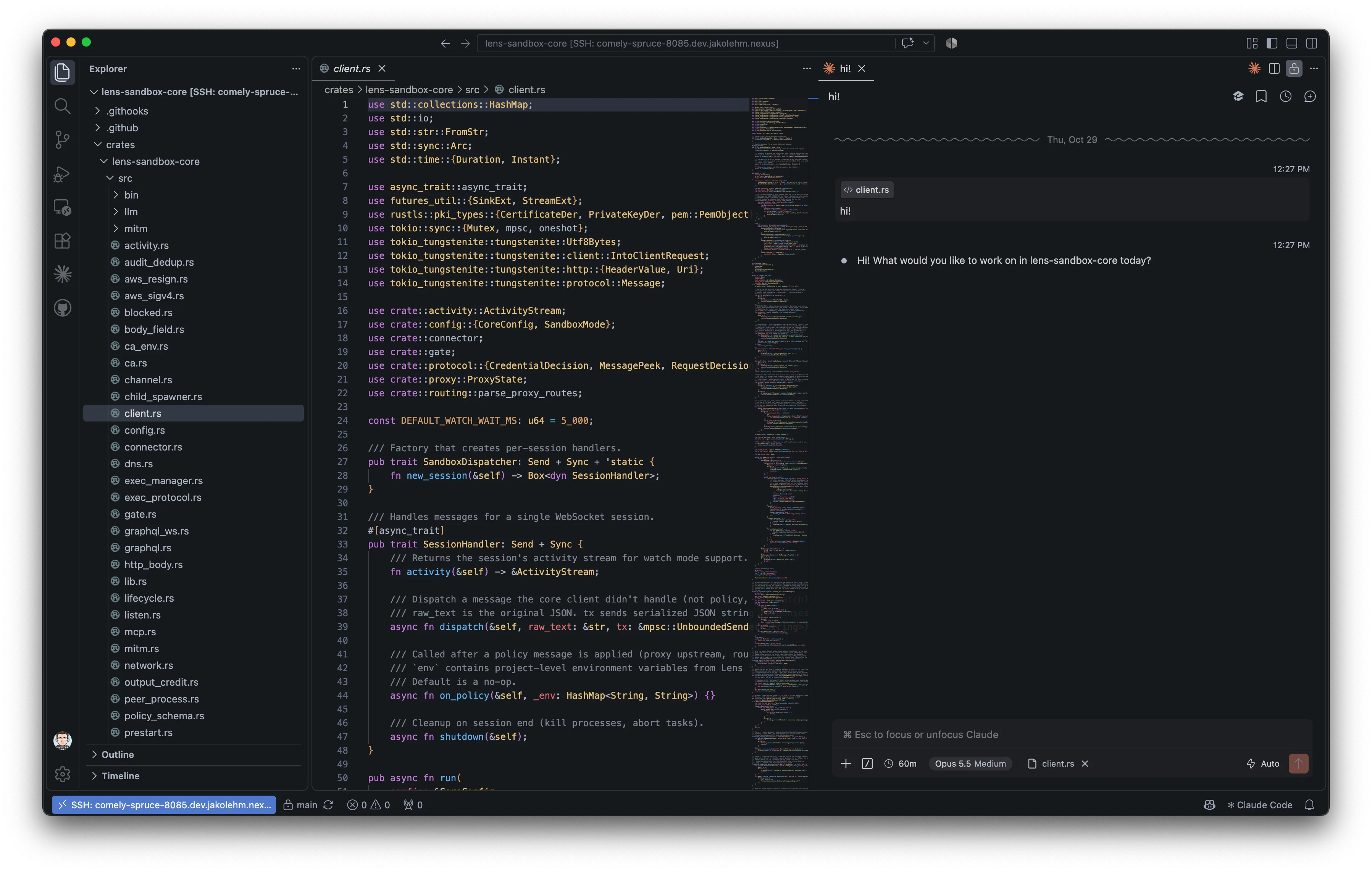
In VS Code, run Remote-SSH: Connect to Host… from the Command Palette and type <sandbox>.<project>.<org>.nexus. Pick Linux if VS Code asks for the platform. The first connection installs the VS Code server in the sandbox, so give it a minute.
Then open the Extensions view and install Claude Code. VS Code installs it in the sandbox, not on your laptop. Sign in once. The login is stored on the volume, so it stays after a restart.
Open a folder under /home/ubuntu/work, clone a repository, and start a Claude Code session. The agent edits files, runs commands, and pushes to GitHub, all inside the sandbox.
Keep the token out of the sandbox
VS Code can also give Git your GitHub login from your laptop. If the sandbox has no GitHub credential, a clone or push asks VS Code, and VS Code sends your own token into the sandbox. That works, but the real token is then in the sandbox, with all the access your GitHub login has, and the agent can ask VS Code for it too.
With the credential in the spec, the platform adds the token to every request to GitHub, so Git never needs to ask VS Code. VS Code still offers your login to the sandbox, though, so turn that off in your VS Code settings:
{
  "git.terminalAuthentication": false,
  "github.gitAuthentication": false
}
What the sandbox adds
VS Code gives you the editor you already use. The sandbox decides what the agent in it can do:
- Off your laptop. The agent runs in the sandbox, so it can't read your files, SSH keys, or cloud credentials.
- Default-deny egress with per-domain, per-method rules, enforced outside the agent.
- No secrets in the sandbox. Secrets that you store in Lens Agents, such as the GitHub token, reach the agent only as placeholders. The real values are added at the boundary. Your Claude login is different: it is stored on the sandbox volume, as on any machine where you log in.
- Audit. Every request the sandbox proxy handles is recorded, with the policy decision.
Your workflow stays the same: the same editor, the same extension, the same keybindings. Only the place the agent runs changes.
When the connection drops, for example when you close the laptop, the agent keeps working for 3 hours by default. To change that, set remote.SSH.reconnectionGraceTime (in seconds) in your VS Code settings. The new value applies the next time the VS Code server starts in the sandbox.
If you prefer to work in terminals, see how to run coding agents in herdr on a Lens Agents sandbox.
Run your coding agents governed
Run Claude Code, Codex and other compatible agents with identity, policy, and audit built in.
FAQ
Does the sandbox need an SSH server?
No. nexusctl sandbox ssh-proxy acts as the SSH server on your machine and turns each SSH session into an exec in the sandbox.
Do other VS Code extensions work?
Extensions that run on the remote side install in the sandbox and follow its policy. If an extension needs a service the policy doesn't allow, the request is denied and shows in the sandbox log. Add the domain to allowedDomains if you trust it.
Can I use SSH agent forwarding for Git inside the sandbox?
No. The proxy refuses agent forwarding. Use a token credential instead, as in the example: the sandbox sees a placeholder and the platform adds the real token to requests to GitHub.
What happens to my work when the sandbox restarts?
The home volume stays, so repositories, the VS Code server, extensions, and the Claude Code login stay too. Connect again, and VS Code picks up where it was.