
TL;DR:
- MCP (Model Context Protocol) is an open standard that lets AI agents use external tools. An MCP server is the program that gives an agent those tools.
- Every cluster at once: the Lens MCP Server gives your agent every cluster connected to Lens: kubeconfig, AWS EKS, Azure AKS, Google GKE and Lens Teamwork Spaces. Ask once, with no switching between clusters.
- Your IDE is the MCP server: your agent opens what it finds in Lens, and when you turn it on, it drives Lens while you watch.
- You stay in control: your agent drafts every change, including Helm in the Lens Helm screens, and nothing reaches your cluster until you apply it.
- One server, nothing to deploy, no extra logins: kubectl, Prometheus, costs and CVEs, with the access Lens already has. More than 80 tools in Lens K8S IDE 2026.11.1, and more with extensions.
Your AI agent is only as useful as what it can reach. Most of the time that means one cluster, one context, one set of credentials at a time.
The Lens MCP Server changes that. Turn it on in Lens K8S IDE, and Claude Code, Cursor, GitHub Copilot or any other MCP client gets every cluster connected to Lens, from the cloud to your laptop. Your agent investigates across all of them, opens what it finds in Lens, and leaves every change to you.
The Lens MCP Server first shipped in March 2026 with Kubernetes and Prometheus tools. Lens K8S IDE 2026.11.1 adds the Lens tools that Ask AI uses, for more than 80 tools in all.
What you get because the server is Lens
Because the MCP server is Lens itself, your agent gets more than kubectl:
Reach every cluster connected to Lens at once
Kubeconfig, EKS, AKS, GKE and Teamwork Spaces. Ask once; your agent checks them all. No switching or separate logins.
Your IDE is the MCP server
Your agent opens what it finds right in Lens: the resource, its logs, a terminal.
Your agent can drive Lens
Off until you turn it on. Then it clicks and types in Lens while you watch, and you can stop it at any time.
You are in control of every change
Your agent drafts the change; nothing reaches your cluster until you apply it.
Helm with a real UI
Installs, upgrades and rollbacks open in the Lens Helm screens, with the chart, version and values in front of you.
Kubernetes, metrics, costs and security in one server
kubectl, Prometheus, costs and CVEs in one place.
Nothing to deploy, no extra credentials or logins
Runs in Lens with the access you already have.
More tools with every extension
Lens extensions can add tools for your agent, where your organization allows extensions.
See it in action
From a real run on a laptop with 13 clusters in Lens, cluster names left out:
You:    How are all my clusters?

Agent:  list-clusters
        13 clusters: kubeconfig, Azure AKS, Google GKE and more
        kubectl get nodes, on each cluster
        (Lens connects the clusters that weren't connected)

        12 clusters are healthy: every node is Ready.
        1 GKE cluster didn't answer.
One question, every cluster, no switching. Try these prompts too:
- "Which pods are restarting in the
productionnamespace, and why?" - "Show me the firing Prometheus alerts on all my clusters."
- "Which namespace costs the most on this cluster?"
- "Roll back the
checkoutrelease to its previous revision." Lens opens the rollback dialog, and you confirm it.
What you need
- Lens K8S IDE 2026.11.1 or later, on a Plus, Pro or Enterprise plan or a free trial.
- An MCP client, such as Claude Code, Cursor or GitHub Copilot.
- For cloud clusters, the Lens AWS, Azure or Google Cloud integration, signed in.
- For metrics, Prometheus in the cluster. For costs, Cost Monitoring set up. For CVEs, the Trivy Operator.
Connect your AI agent in just two steps
Step 1: Turn on the Lens MCP Server and copy its configuration
- In Lens, open Preferences > Integrations.
- Under AI & Intelligence Integrations, turn on Enable Lens MCP Server.
- Expand Configure your MCP client and copy the configuration with the copy icon.
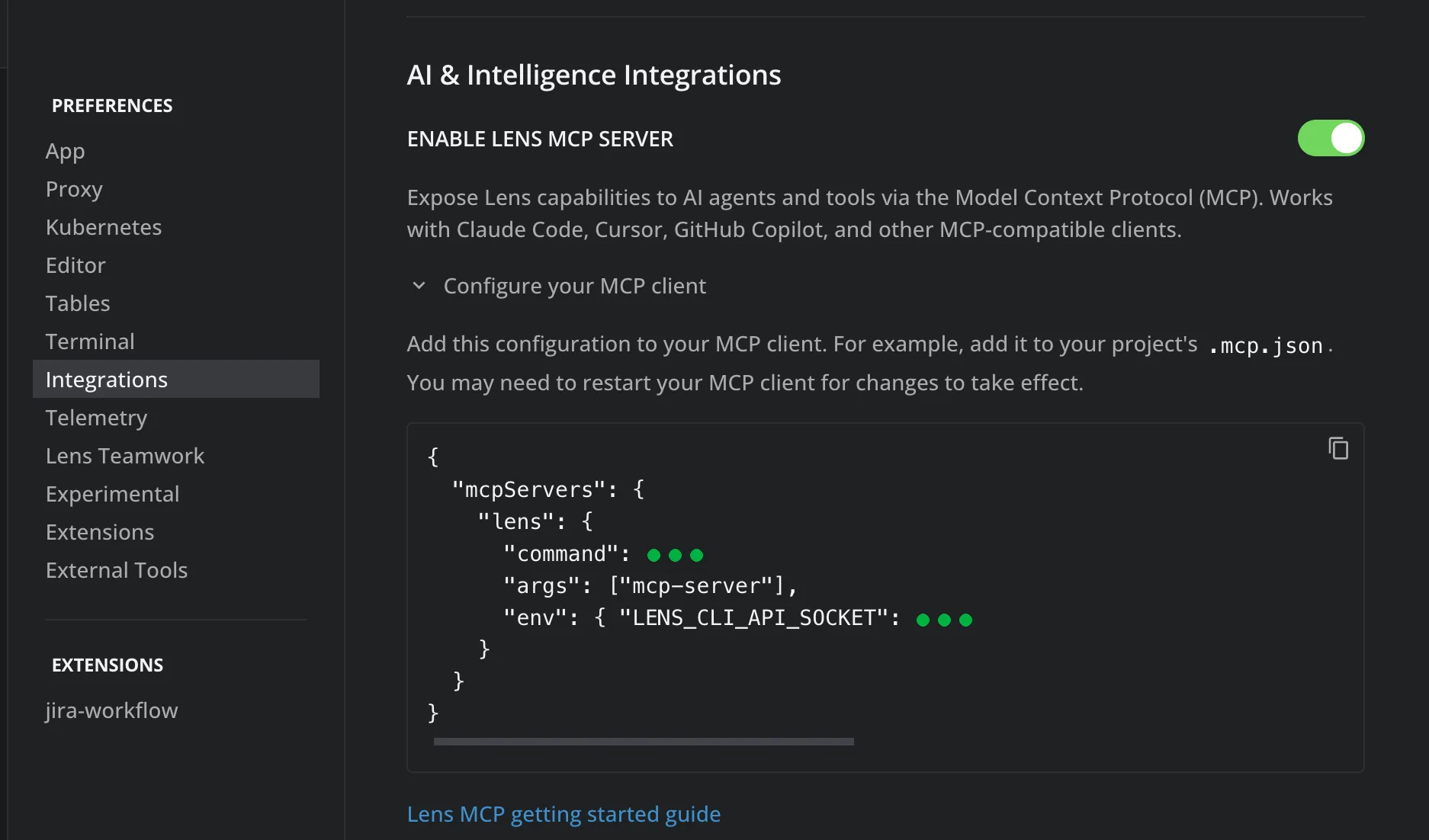
Step 2: Paste it into your AI agent
- Paste the configuration into the MCP configuration of your AI agent. It contains paths on your machine, so use your user-level configuration, or don't commit it to a shared repository.
- Restart your AI agent so it loads the Lens MCP Server.
In Claude Code, run /mcp to check it: the lens server shows as connected.

That's it. You're ready to work with all your clusters from your AI agent.
Learn more
- Manage all your K8s clusters from any AI assistant with the Lens MCP Server
- What's new in Lens K8S IDE 2026.11.1
- Cost Monitor & Optimization in Lens K8S IDE
- Connect your cloud clusters: AWS EKS, Azure AKS, Google GKE
Try your AI agent with the Lens MCP Server for Kubernetes, free.